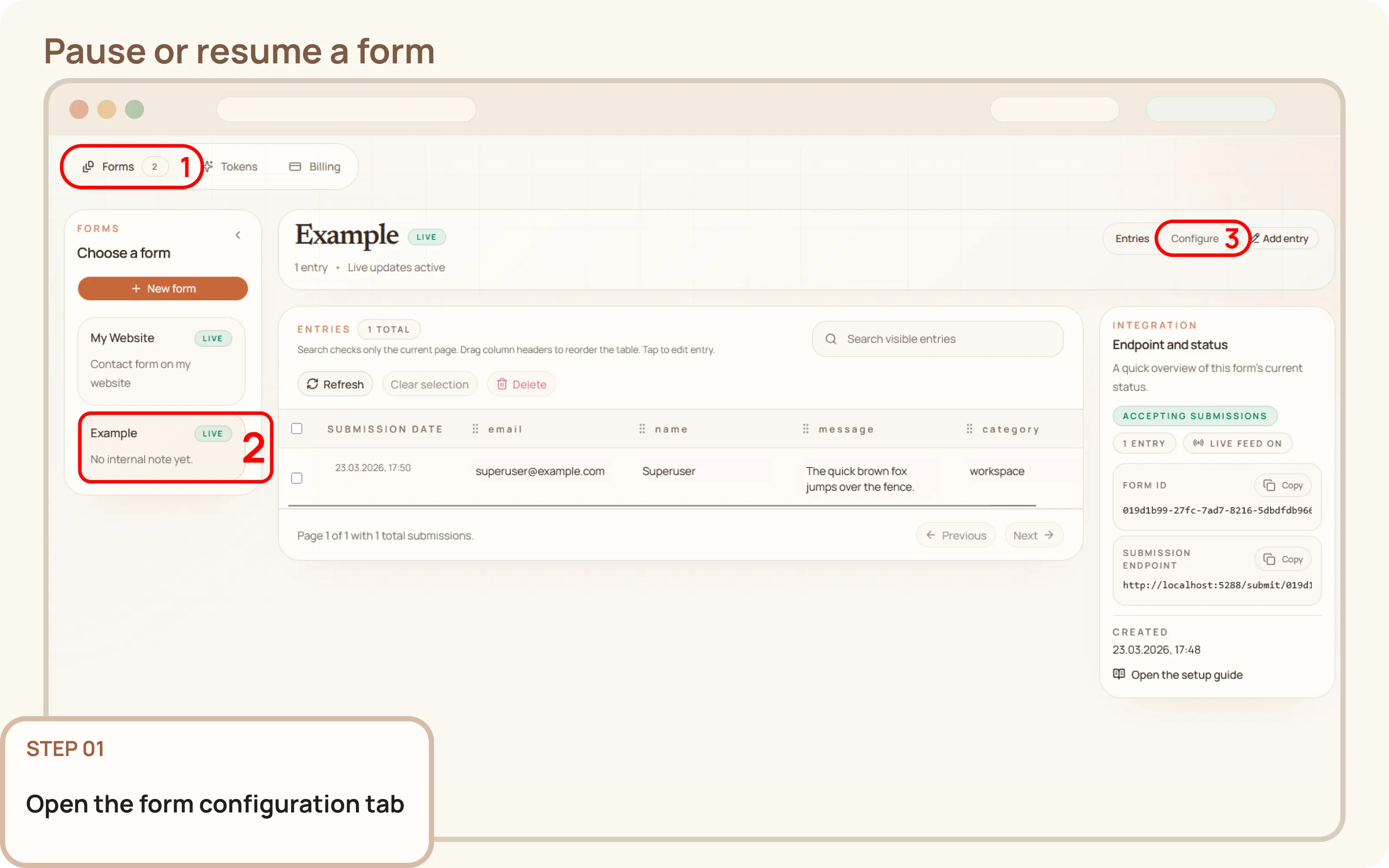
Open the form configuration tab
- Go to
Workspace > Formsand select the form you wish to manage. - Switch from the
Entriestab to theConfiguretab to open the form's configuration panel.

Documentation
Guides and public API reference
Documentation
This guide explains how to temporarily stop and resume acceptance of new submissions for a form without deleting it or its existing entries.
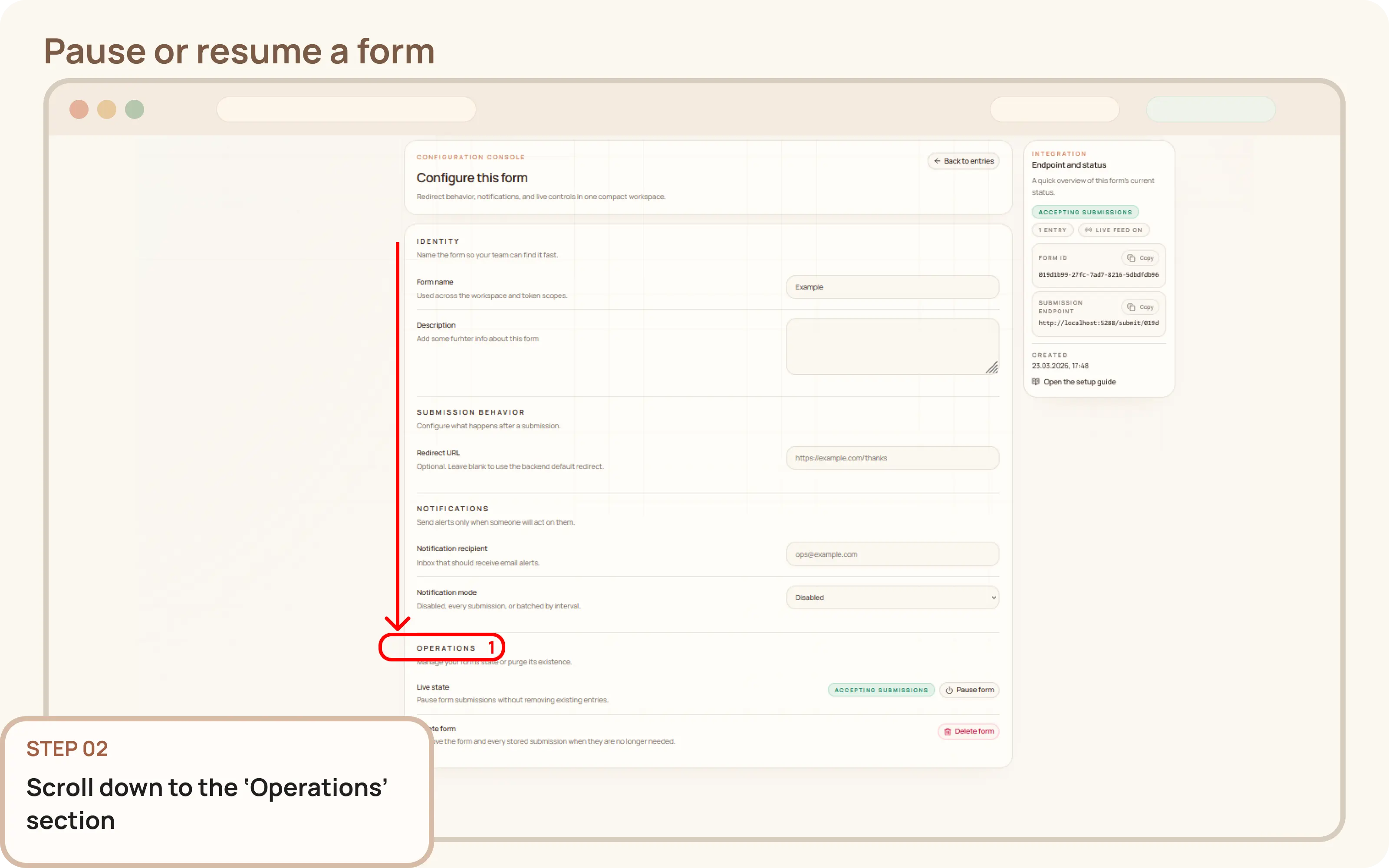
Workspace > Forms and select the form you wish to manage.Entries tab to the Configure tab to open the form's configuration panel.You must scroll down to the bottom of the page to find the Operations section.
Operations section, locate the Live state setting.The form's status will update to either Paused or Accepting submissions.
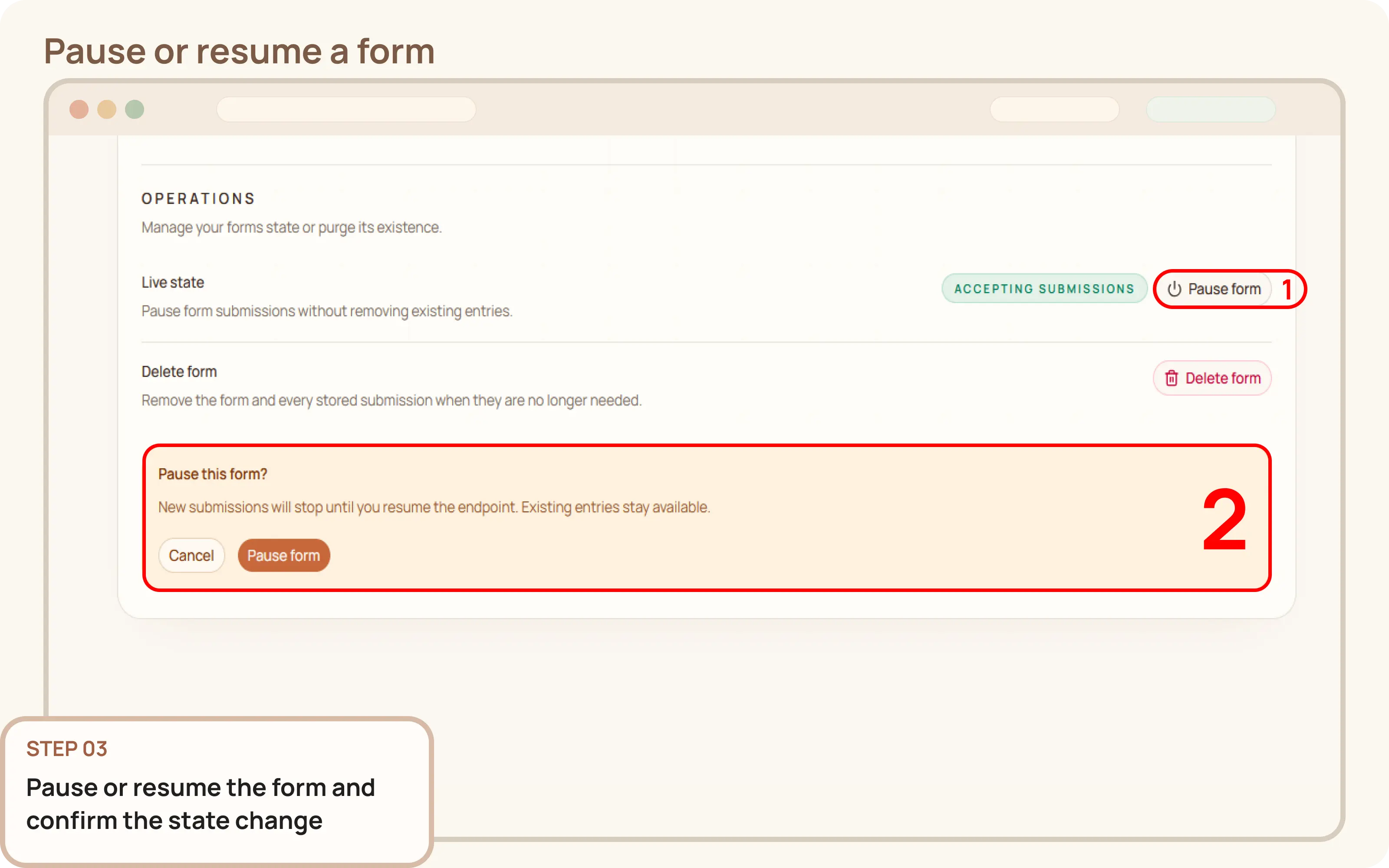
After changing the state, check the form header or integration panel to confirm its status. Existing entries will remain accessible regardless of the form's state.
If the form was resumed, it's a good practice to run a test submission to ensure everything is working as expected.