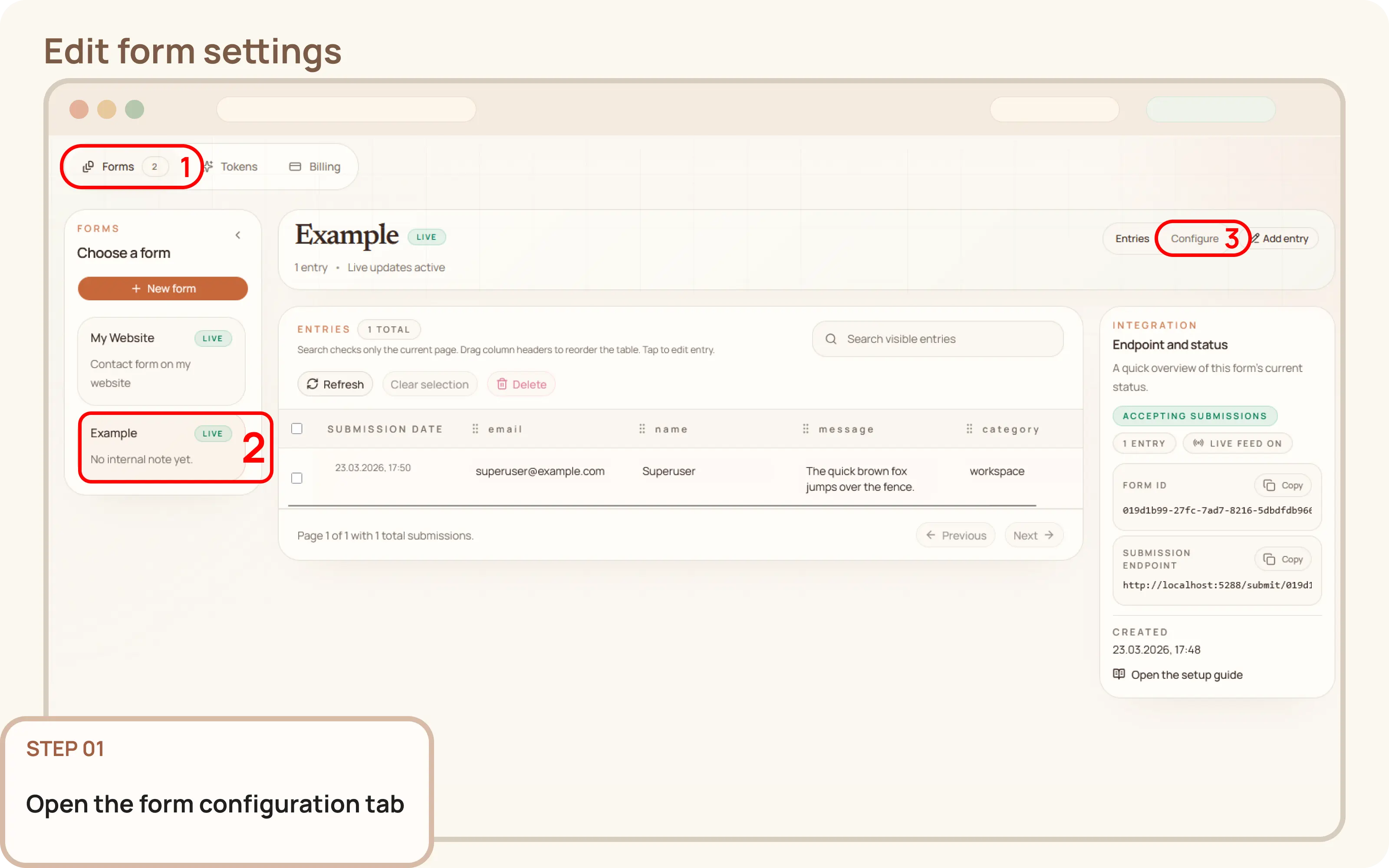
Open the form configuration tab
- Go to
Workspace > Formsand select the form you want to edit. - Switch from the
Entriestab to theConfiguretab to open the form's configuration panel.

Documentation
Guides and public API reference
Documentation
This guide explains how to edit the settings of an existing form from the Mountly dashboard. You can use this to rename a form, update its description, change the redirect URL, or adjust notification preferences.
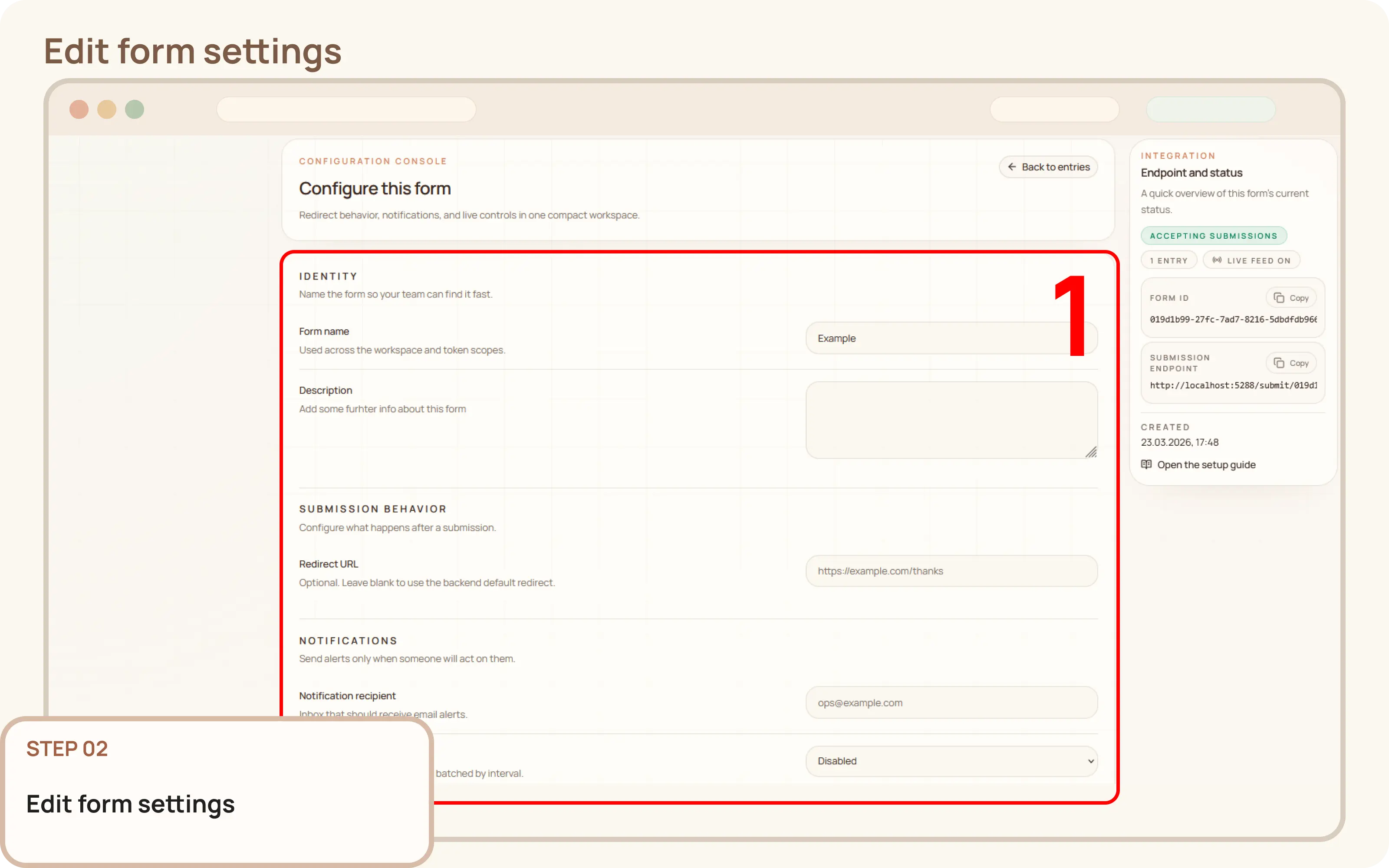
Workspace > Forms and select the form you want to edit.Entries tab to the Configure tab to open the form's configuration panel.You can update the following settings from the configuration panel:
| Section | Available settings | Notes |
|---|---|---|
| Identity | Form name, Description | Update the form's basic information. |
| Submission behaviour | Redirect URL | Controls where visitors are sent after a successful submission. |
| Notifications | Notification mode, Recipient email, Submission interval | Configure form specific notification settings. |
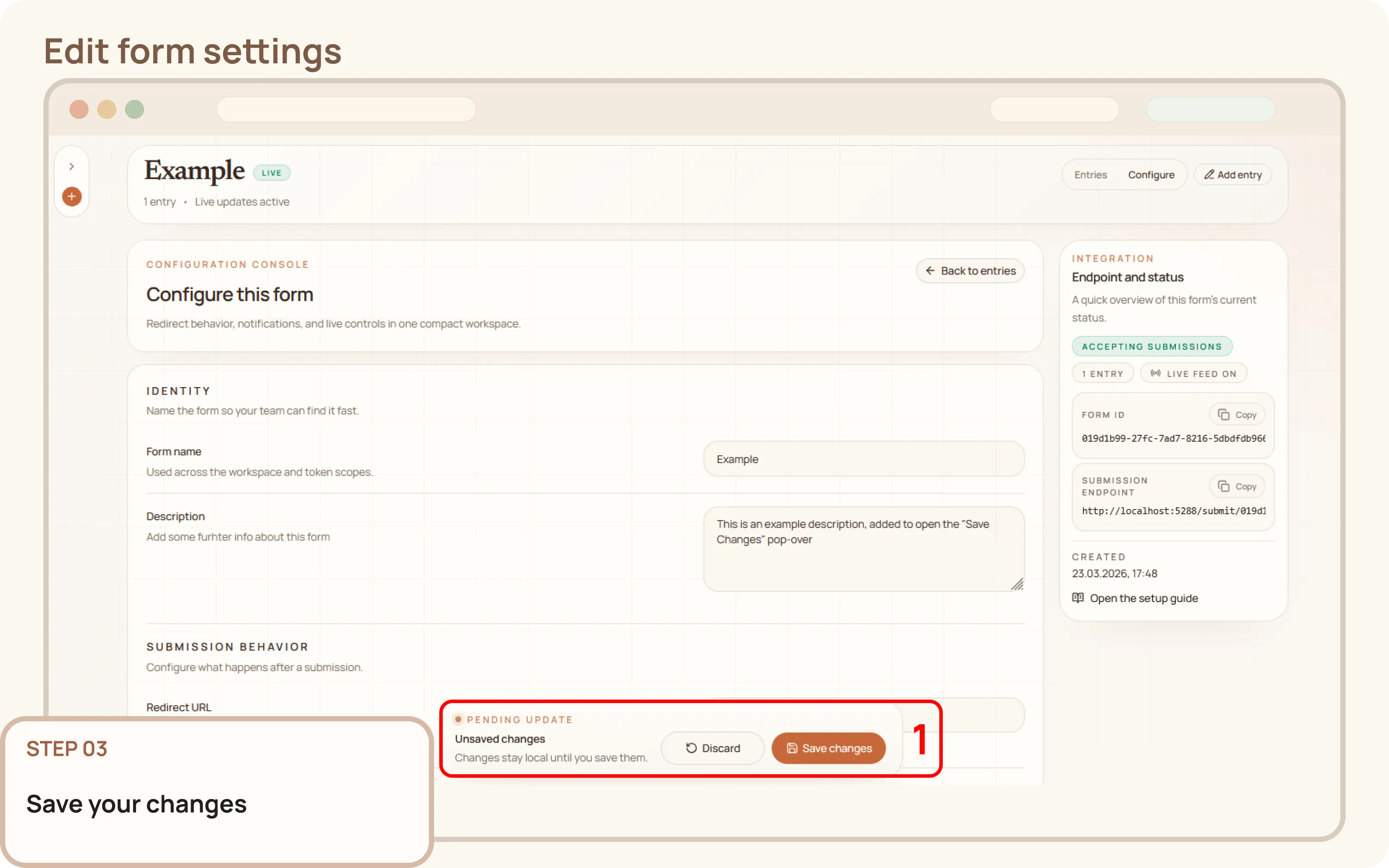
Click Save changes in the floating action bar to apply your updates. The new settings will be applied to all subsequent submissions immediately.
If you changed the redirect or notification behavior, it is recommended to send a test submission to ensure the live form functions as expected.