
Mountly

Documentation

Guides and public API reference

Forms1 min read

Documentation

Integrate a form on your website

This guide explains how to set up a form on your personal website using the Mountly form submission endpoint.

Copy the submission endpoint

  1. Go to Workspace > Forms and select the form you want to connect.
  2. In the form details panel, you will find the submission endpoint. Copy this URL.

The endpoint URL will have the following format:

https://api.mountly.io/submit/<form-id>
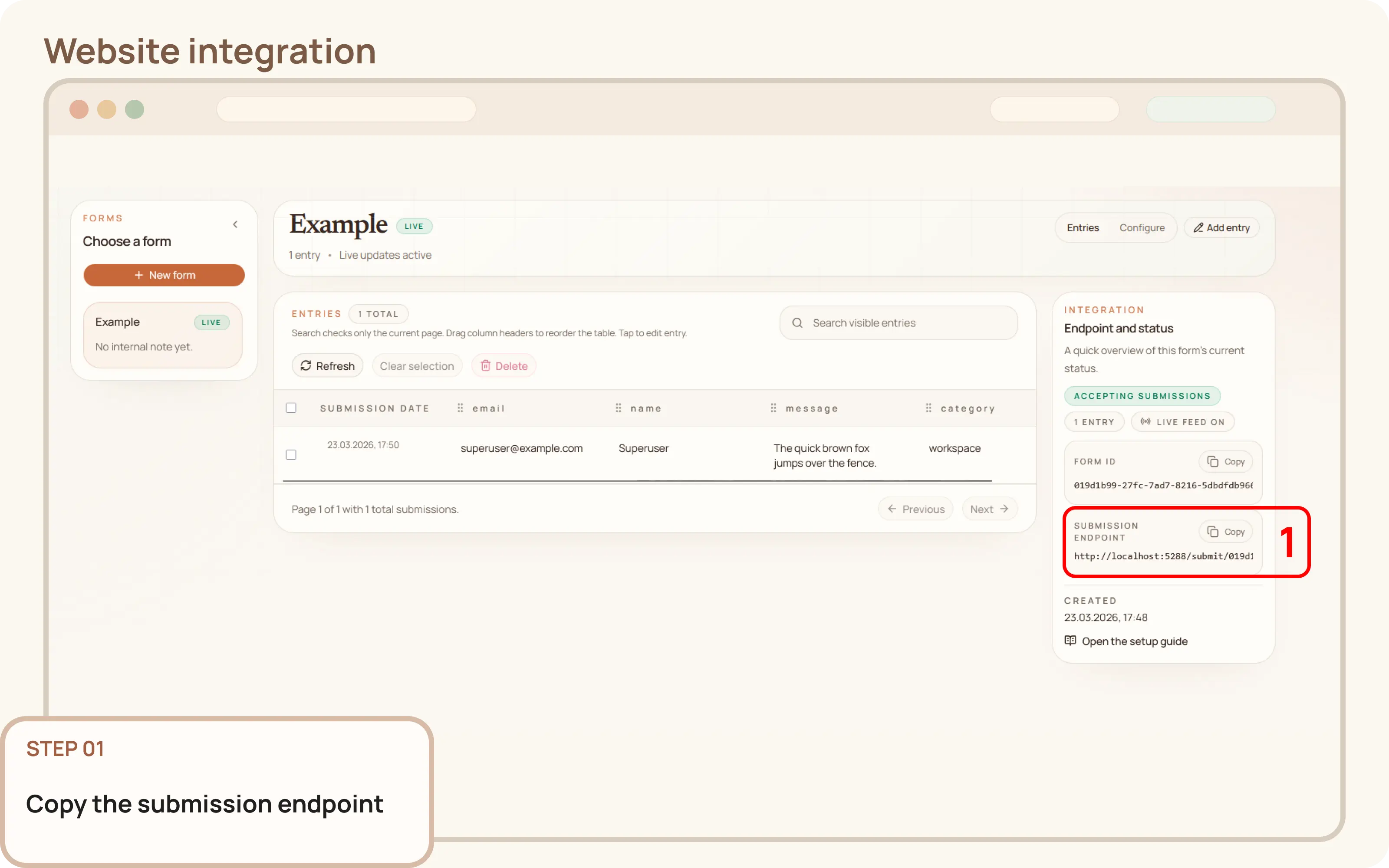
Integrate a form on your website: Copy the submission endpoint

Update your website's form

In your website's HTML, set the action attribute of your <form> tag to the Mountly submission endpoint you just copied. Ensure the method attribute is set to POST.

<form action="https://your-mountly-server.example.com/submit/<form-id>" method="POST">
  <input type="text" name="name" />
  <input type="email" name="email" />
  <textarea name="message"></textarea>
  <button type="submit">Send</button>
</form>

Ensure all fields have a 'name' attribute

Mountly uses the name attribute of each form field to store the submitted data.

  • Make sure every <input>, <select>, and <textarea> element that you want to capture has a name attribute.
  • Use consistent and meaningful names for your fields to make data review easier.
  • Your existing frontend styling will be preserved. Mountly only requires the form's action to point to the submission endpoint and for the fields to have name attributes.

Test the integration

Submit a test entry from your website to ensure everything is working correctly. Verify the following:

  • The form submission is successful.
  • You are redirected to the correct success page.
  • The new entry appears in Workspace > Forms.
  • Email notifications are functioning as configured.